1.
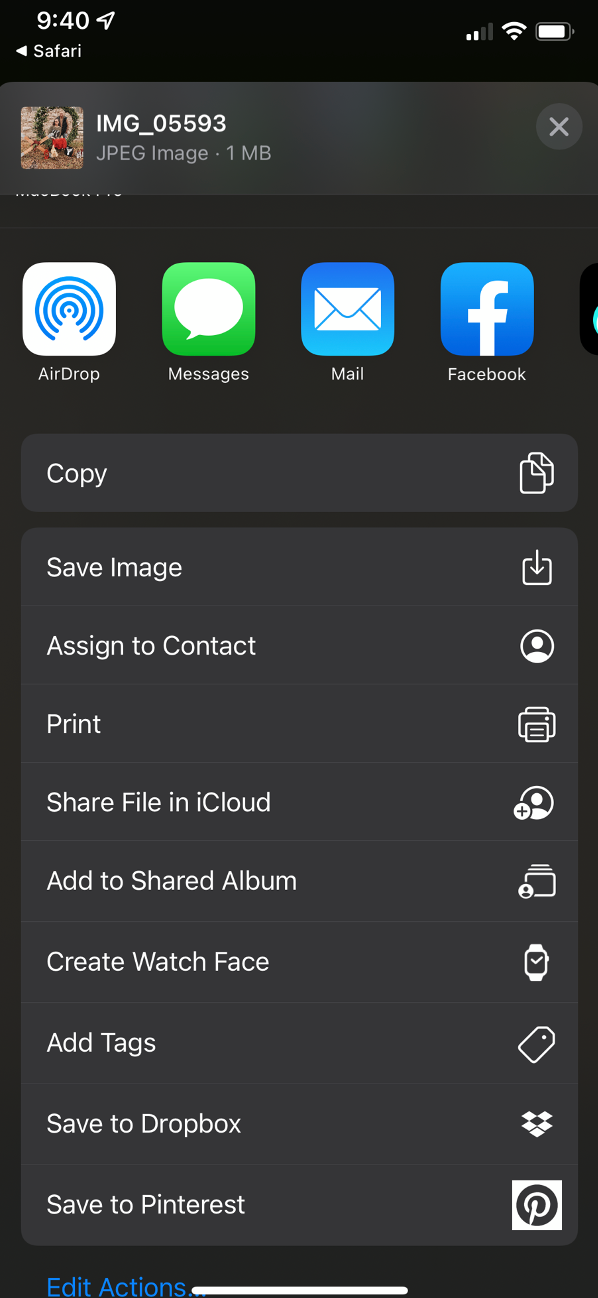
Tap on the link that I sent you to access your photo gallery on Pixieset. You will then tap view gallery or just scroll down until you find the top of the gallery. Tap on the three dots at the top of the gallery. A pull down menu will appear. From there tap where it says "download" .
2.
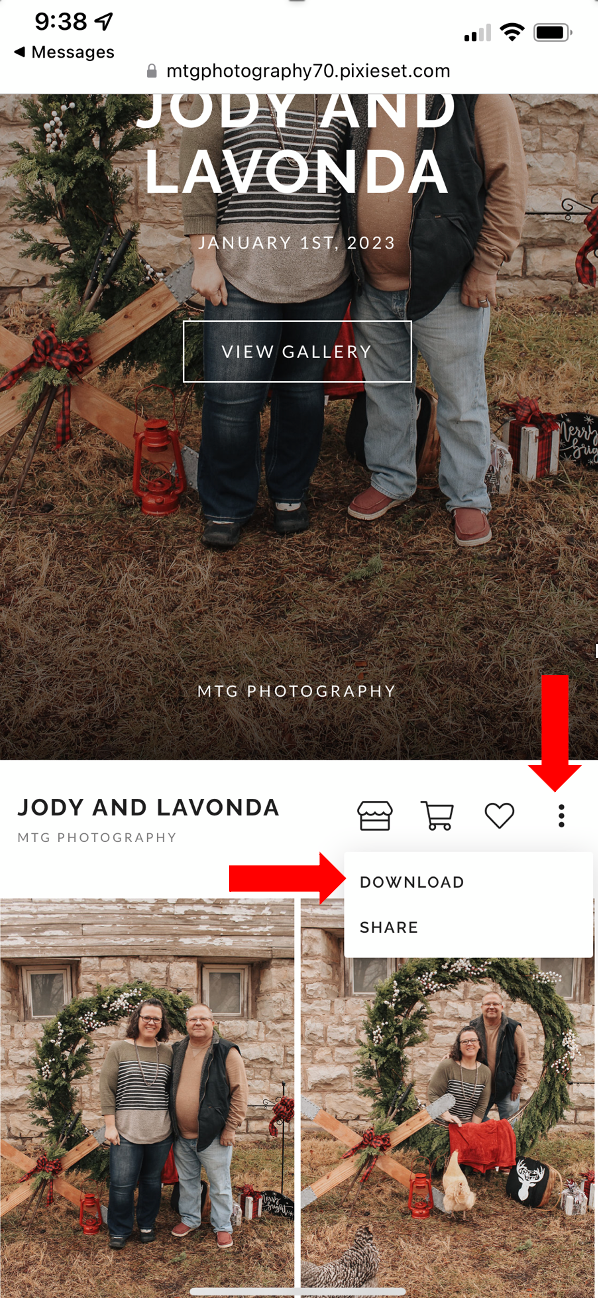
Then a screen like this will pop up. Enter an email address and the 4 digit code I sent you with your link and then tap "next".
3.
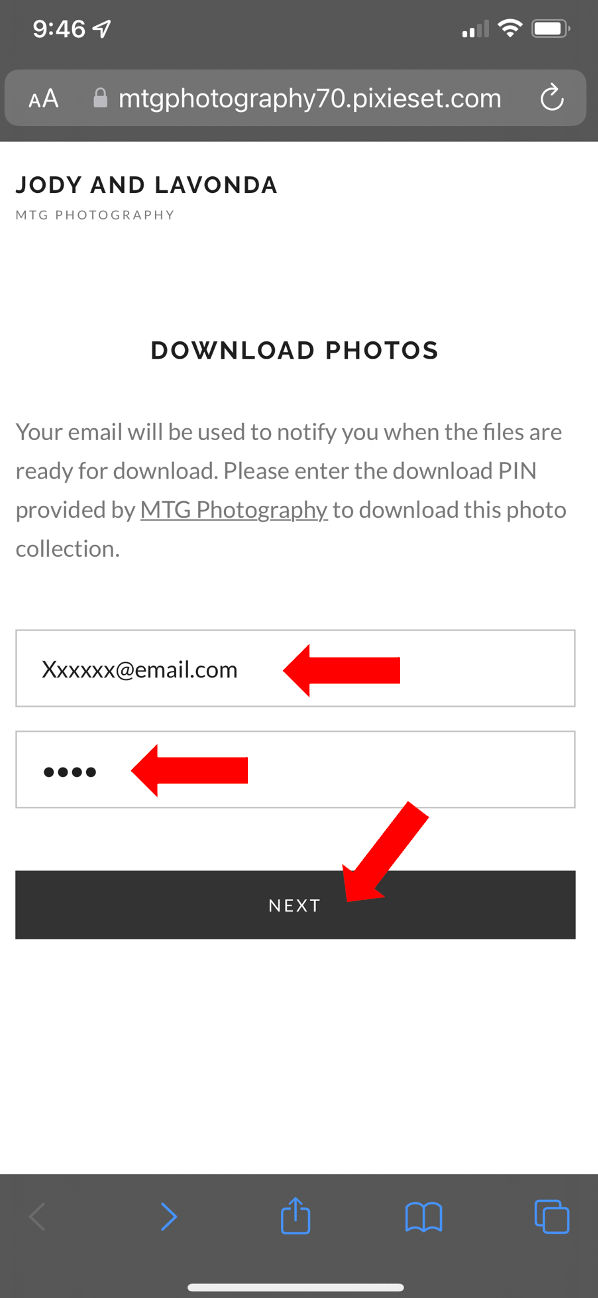
Once you tap next, it will lead you to a page that looks like this. First, make sure that the highlights box is checked. Next, select "High Resolution". Then, you have a choice on where you want to download your photos. To download them to your phone select "My Device". Last, tap "Start Download".
4.
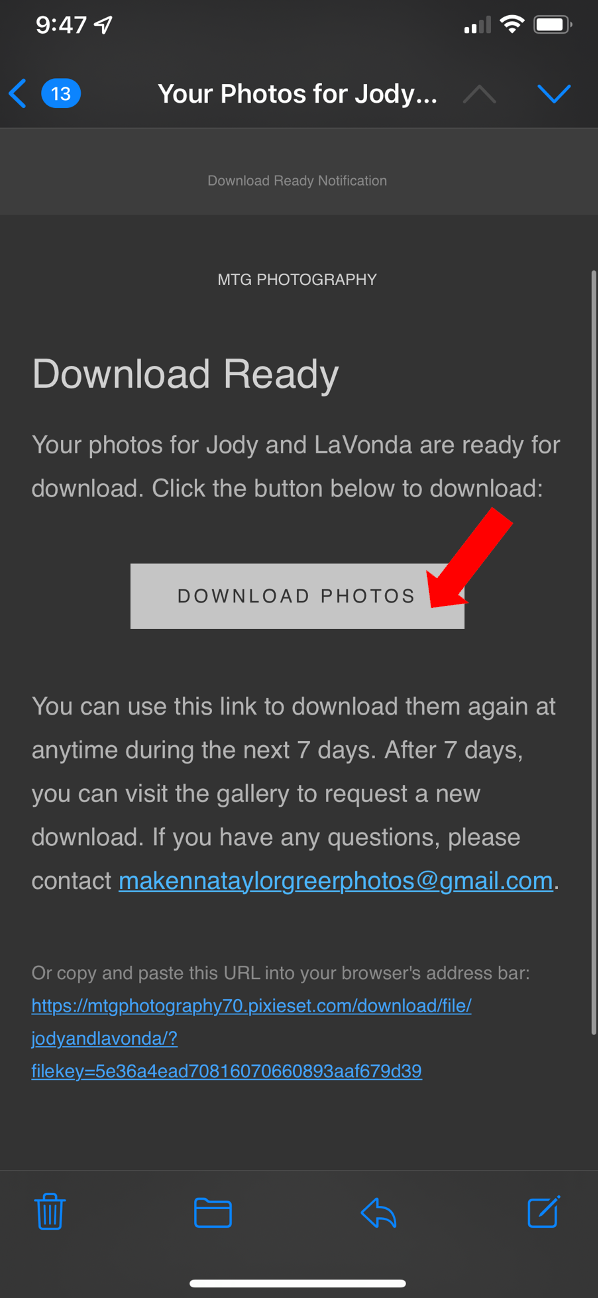
Once you tap "Start Download", go to your email and find the email from me (it should say MTG Photography). Open the email and tap the button that says "Download Photos".
5.
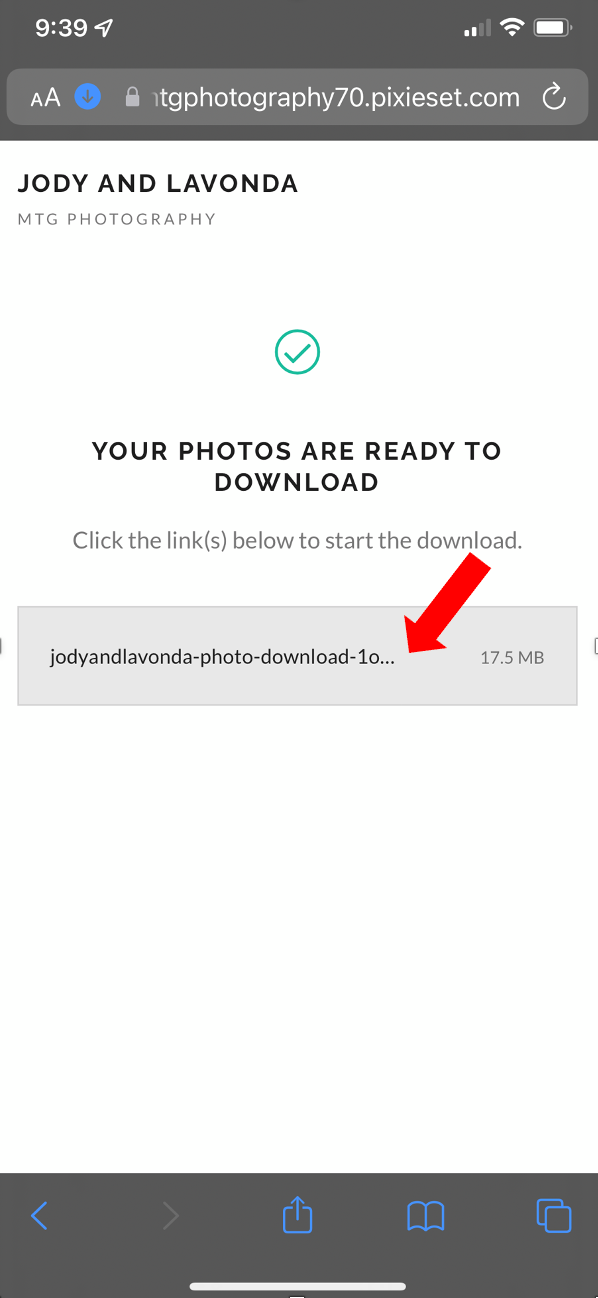
Once you tap "Download Photos" it will open you up to this page. Tap on the link listed in the grey box to start downloading.
6.
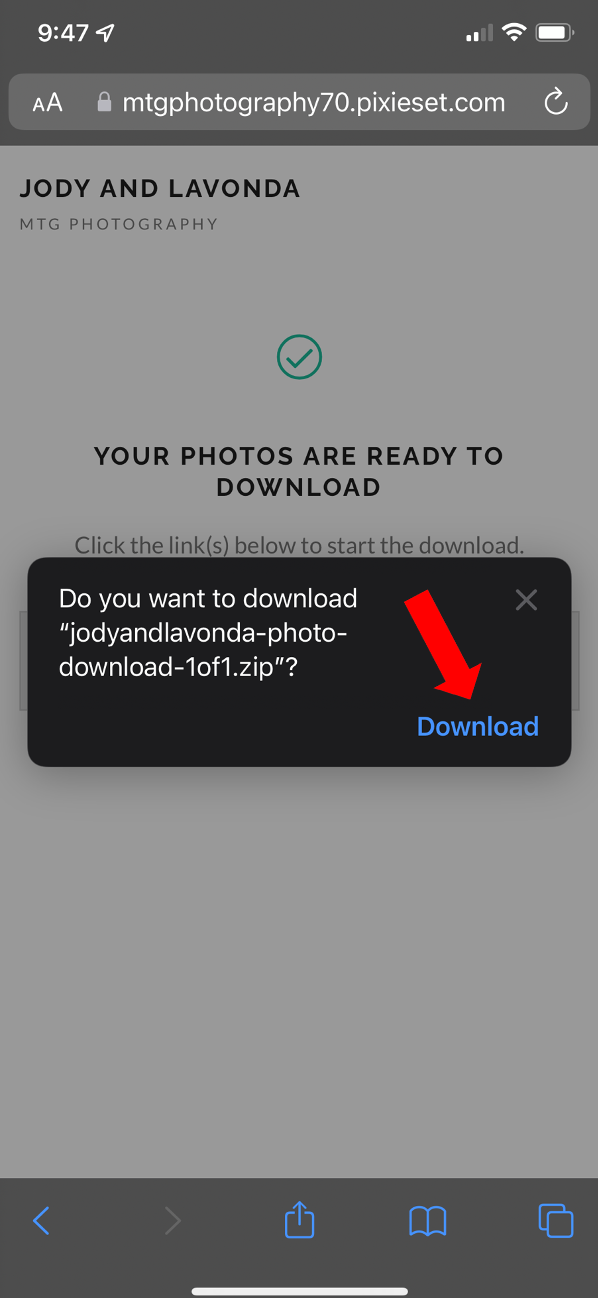
It will then ask if you want to download. Tap "Download" to start downloading to your iPhone.
7.
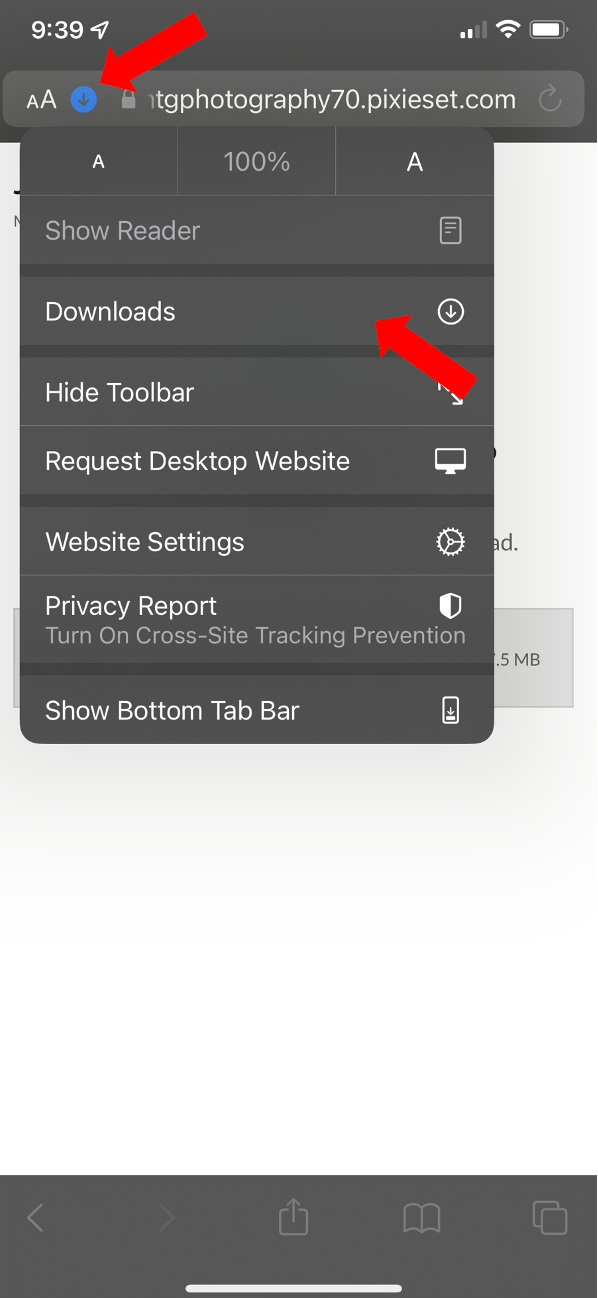
Once you tap "download" the photos will start to download to your iPhone. At the top of the screen, next to the search bar, tap on the blue circle with the arrow. A drop down menu will appear. Tap where it says "Downloads".
8.
After tapping "downloads" you will see a zip file with the name of your gallery. tap on this and it will open up to all of the downloaded files on your iPhone.
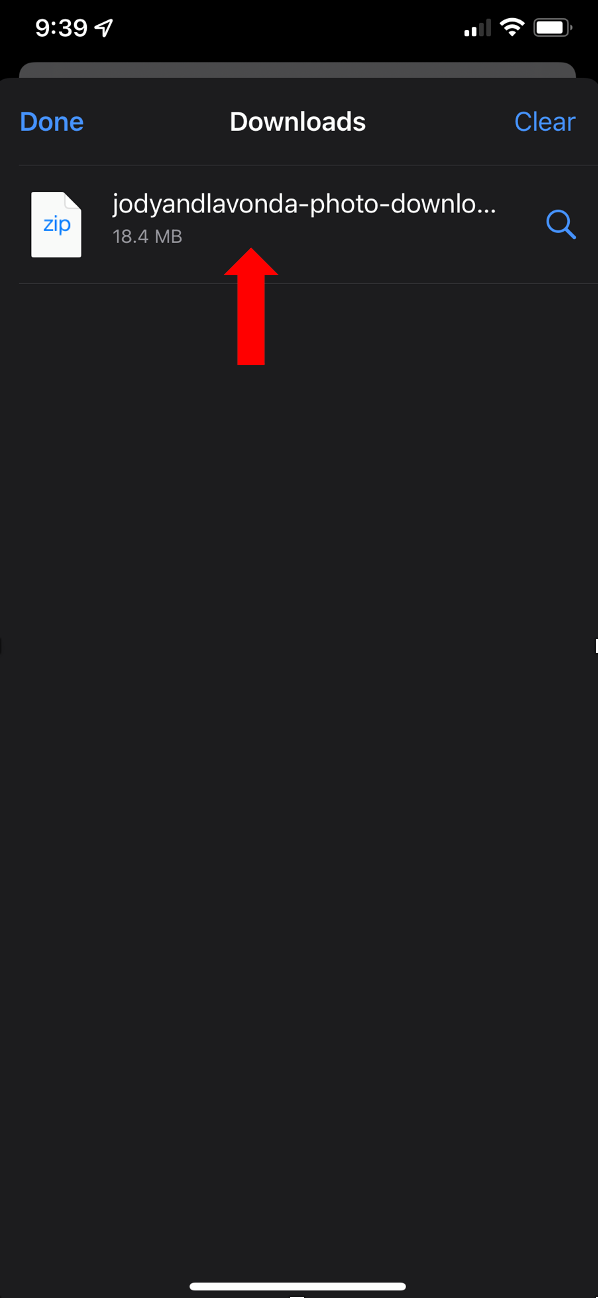
9.
Once you see this page find the blue file folder with the name of your gallery and tap on it to open it.
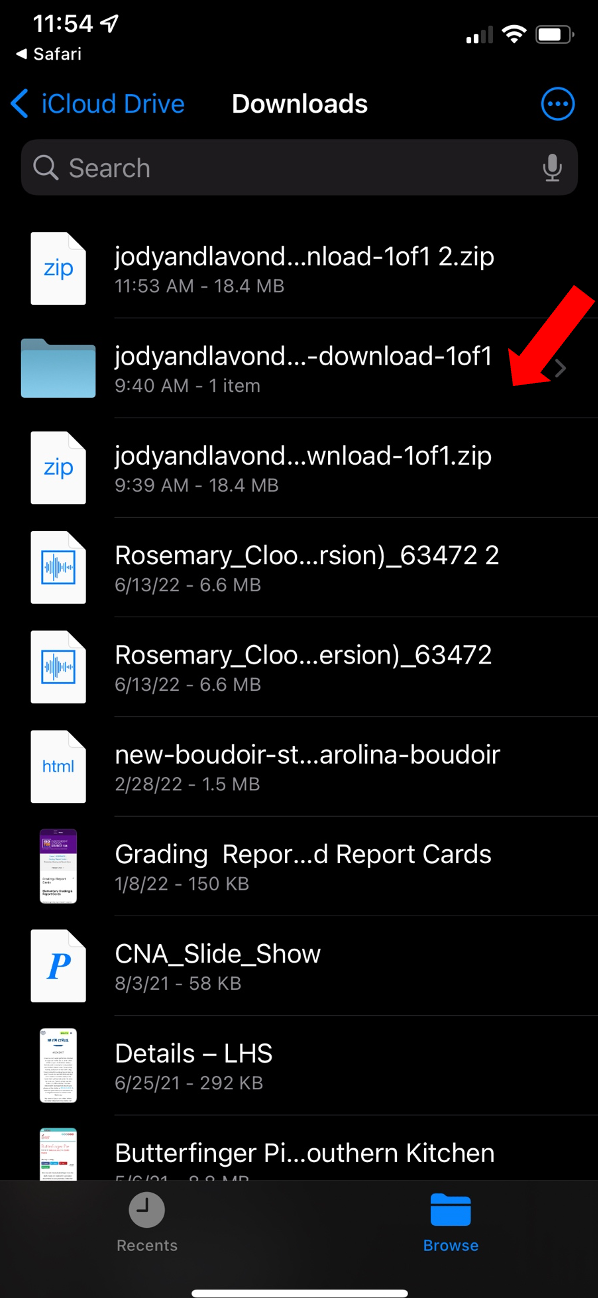
10.
Once you open your file there will be another file that says "Highlights", tap on it to view a list of all your photos.
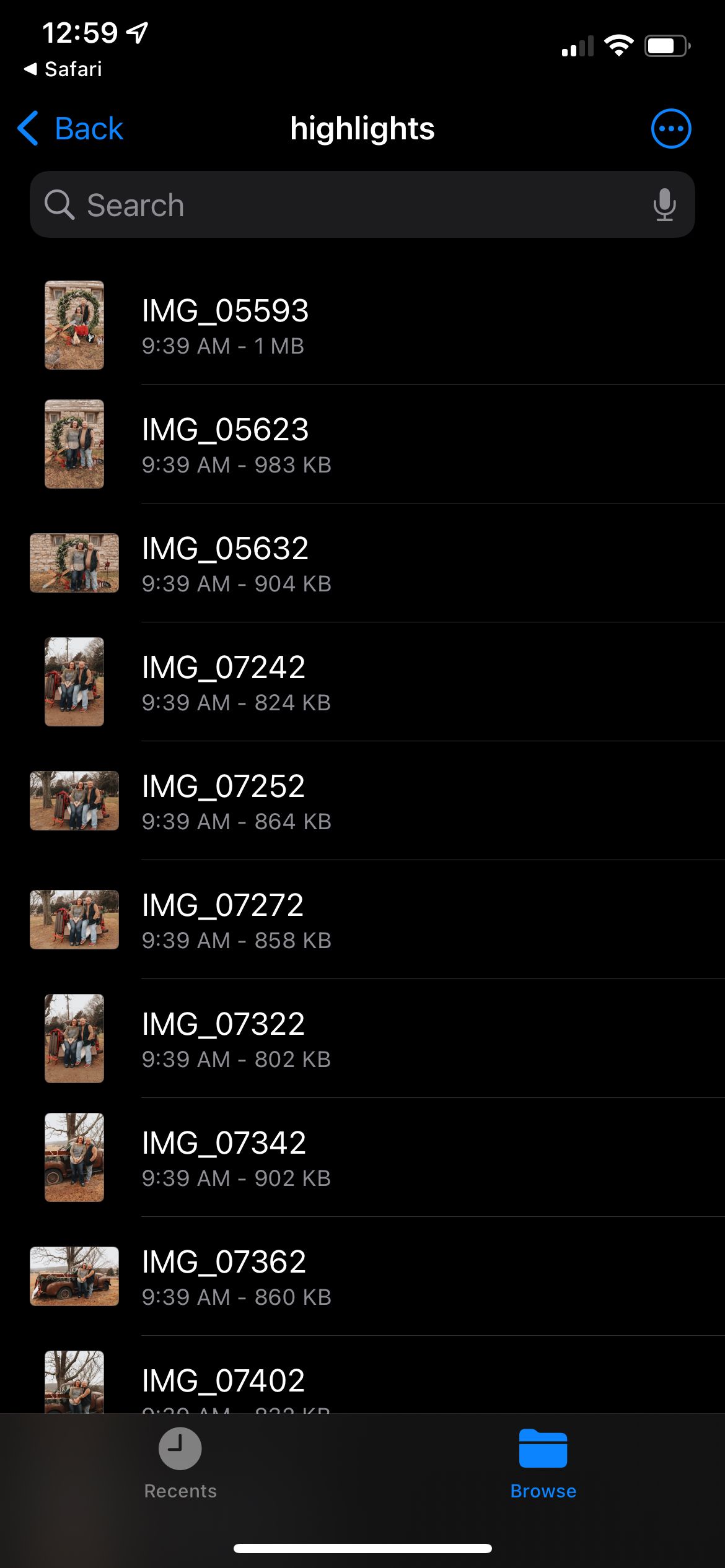
11.
In the top right hand corner of your screen, tap on the circle with three dot in the middle. A drop down menu will appear. Tap on the option that says "select".
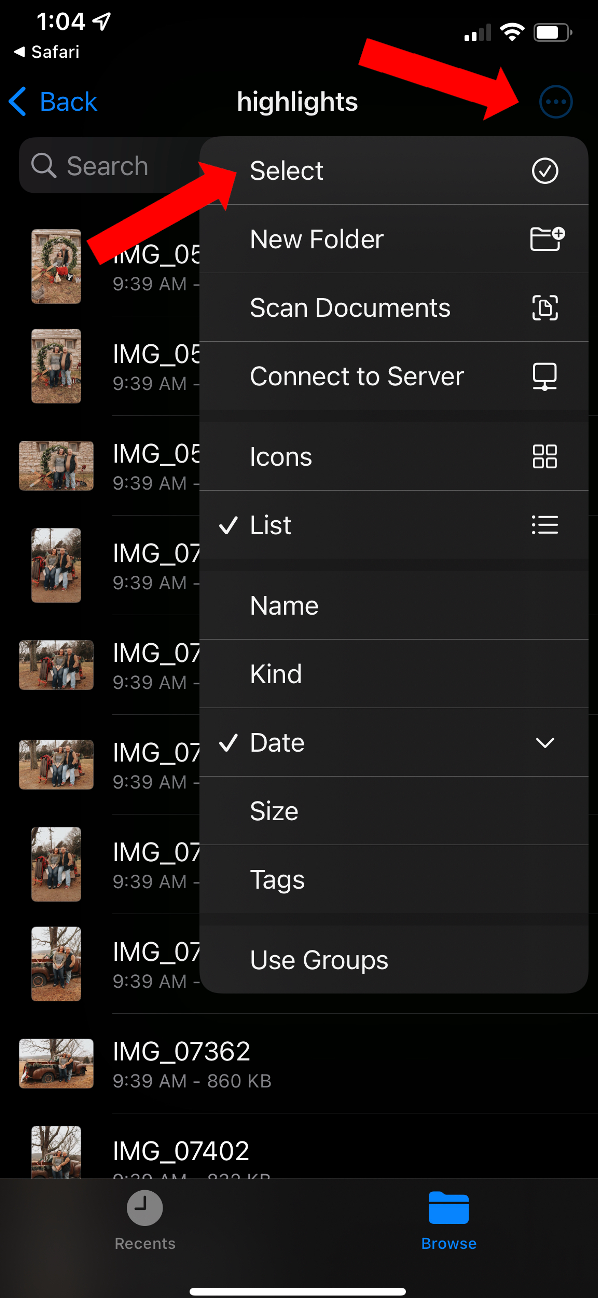
12.
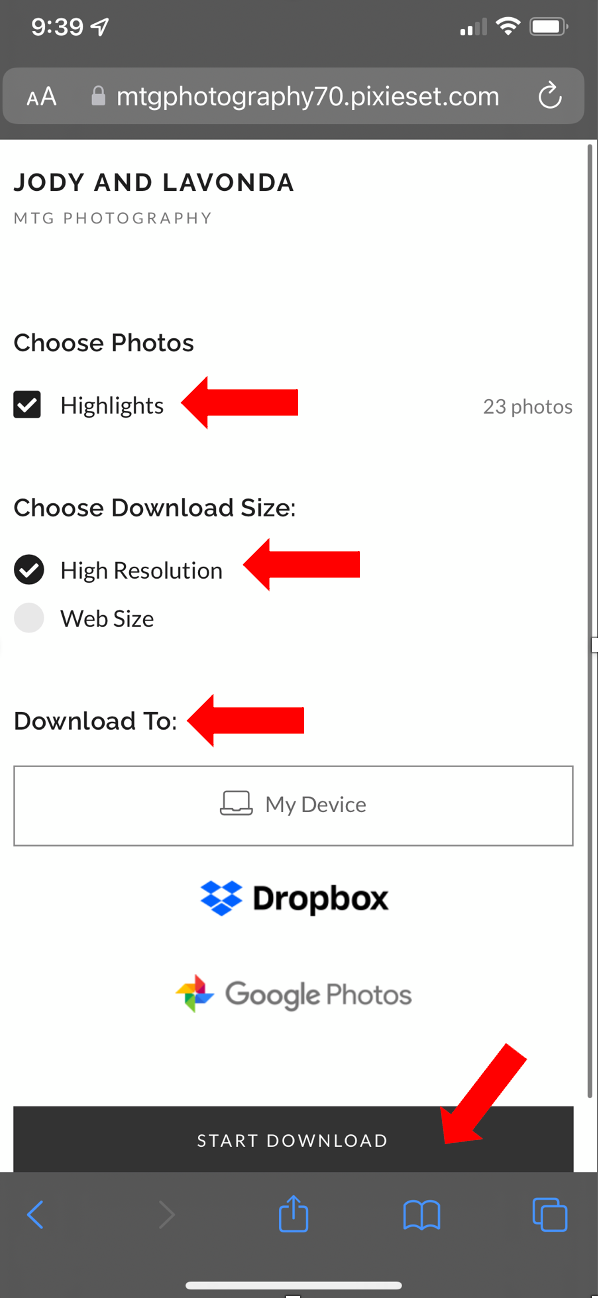
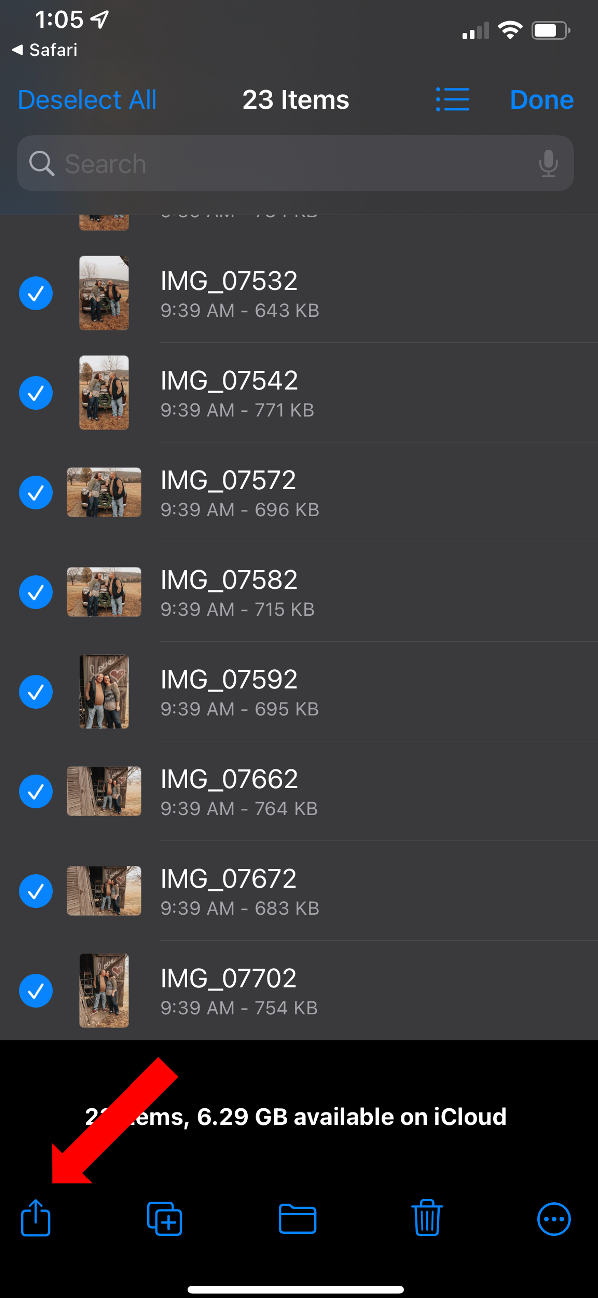
Select all of the images in the file. There will be a check mark in a blue circle next to it if it has been selected. From there look at the bottom left hand corner of your screen and you will find a box with an arrow (see image for reference). You will click on this to export the photos.
13.
Once you tap in the left hand corner of your screen a menu will appear. From here you can pick where to export the photos to. You can email them, save them to photos, post them on social media, etc.
Still needing help and/or have any questions? Feel free to message or call me! Im always happy to help!